
Introduction
Have you ever spent hours discussing a project with ChatGPT, developing ideas, writing content, or solving technical problems, only to struggle to find that conversation later? For many people, AI conversations have become an important part of their daily workflow. They contain valuable research, business strategies, code snippets, marketing plans, content drafts, and solutions to complicated problems.
However, managing these conversations can become difficult when your chat history grows. Switching between AI platforms, changing accounts, or trying different language models can make it harder to access your previous work.
The good news is that you don't have to leave all your previous conversations behind. You can export your ChatGPT data and bring your conversation history into another workspace.
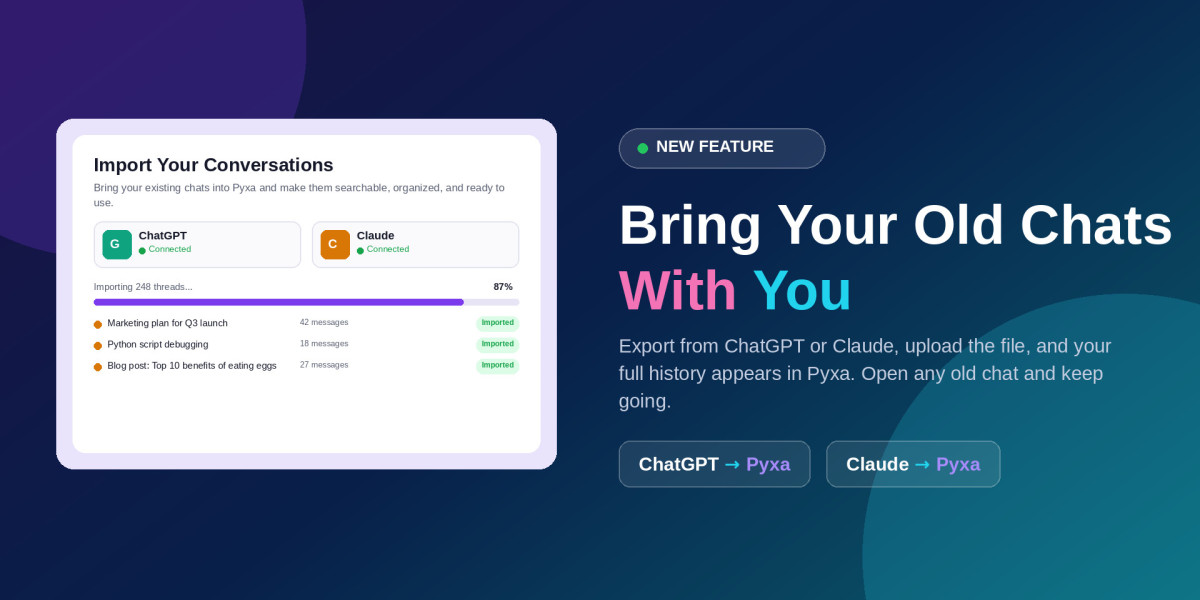
With Pyxa AI's Import Conversations feature, you can import your exported ChatGPT conversations, organize your previous discussions, search your history, and continue working with available AI models from one dashboard.
Let's explore how the process works and why preserving your AI chat history matters.
1. Why Should You Save Your ChatGPT Conversations?
AI conversations are more than temporary messages. They often contain information that people spend considerable time developing.
For example, a digital marketing professional might use ChatGPT to:
Research keywords and competitors.
Develop SEO strategies.
Create content calendars.
Write website copy and blog articles.
Analyze website performance.
Develop marketing campaigns.
Similarly, developers may use AI conversations to troubleshoot errors, understand programming concepts, and build applications.
Losing access to these discussions can mean repeating research and explaining the same project requirements again.
Saving your ChatGPT conversations gives you a personal record of previous work that you can refer to when needed.
Some important benefits include:
Preserving valuable information: Keep your previous ideas, research, and discussions accessible.
Improving productivity: Avoid repeating prompts and explaining the same requirements repeatedly.
Supporting long-term projects: Return to previous conversations when continuing business, development, or research projects.
Maintaining flexibility: Explore other AI platforms without abandoning your previous work.
2. Understanding ChatGPT Data Export
ChatGPT provides an official data export option that allows eligible users to request a copy of their account information.
The export can include conversation history and other relevant account data. It is generally provided as a downloadable ZIP archive.
To request your ChatGPT data, follow these steps:
Sign in to your ChatGPT account.
Open your profile menu.
Navigate to Settings.
Select Data Controls.
Find the Export Data option.
Select Export and confirm your request.
Wait for the notification containing your download link.
Download and securely save your exported ZIP file.
Keep in mind that export processing is not always immediate. OpenAI states that exports can take up to seven days to arrive, and the download link expires after 24 hours.
You should also remember that exporting your conversations does not automatically transfer them to another AI platform. You need a compatible import solution to make your previous chats available in another workspace.
For the latest instructions, refer to the official ChatGPT data export guide.
3. Common Challenges When Transferring ChatGPT Conversations
Although exporting your data is relatively straightforward, managing a large conversation archive can introduce several challenges.
Finding the Right Conversation
People who use ChatGPT regularly may accumulate hundreds or thousands of conversations. Finding one particular discussion can become difficult when everything is stored in a long chat history.
Losing Project Context
A previous conversation may contain detailed instructions, business information, or technical explanations. Starting a new discussion without that background can affect the quality and relevance of the results.
Managing Different AI Platforms
Some users prefer ChatGPT for writing, Claude for long-form analysis, and other models for specialized tasks. Keeping separate histories across multiple platforms can make information management complicated.
Repeating Previous Work
Without access to earlier discussions, users may need to recreate prompts, research, outlines, and project instructions.
A better approach is to maintain an accessible conversation archive that can be searched and continued whenever necessary.
4. How to Import ChatGPT Conversations Into Another AI Workspace
After downloading your ChatGPT export, the next step is to move your conversation history into a workspace that supports importing previous chats.
This is where Pyxa's Import Conversations feature becomes useful.
Instead of manually copying individual messages, you can use your exported conversation file to bring your previous discussions into Pyxa.
The general workflow involves three steps:
Step 1: Export Your ChatGPT History
Request your data export through ChatGPT settings and download the ZIP archive when it becomes available.
Keep the original file safe so you have a backup if you need it later.
Step 2: Upload Your Exported File to Pyxa
Open Pyxa's Import Conversations feature and upload the supported ChatGPT export file.
Pyxa is designed to import your conversation history without requiring you to manually copy and paste each discussion.
Step 3: Search and Continue Previous Conversations
Once the import is complete, your previous conversations become available inside your Pyxa workspace.
You can search across imported threads, open an older discussion, and continue working with an available AI model.
Explore Pyxa AI's Import Conversations tool to learn more about bringing your ChatGPT history into one dashboard.
5. Continue Previous AI Conversations Without Starting Over
One of the biggest advantages of importing AI conversations is the ability to continue previous work.
Imagine that you spent several weeks developing an SEO strategy with ChatGPT. Your conversations contain keyword research, competitor analysis, content recommendations, and technical SEO instructions.
You now want to use another AI model to evaluate that strategy.
Without your previous conversation history, you may need to explain the entire project again.
With an imported conversation, you can return to the original discussion and continue developing your ideas within Pyxa.
This can be particularly useful for:
SEO professionals managing multiple websites.
Content writers working on long-term publishing projects.
Developers maintaining ongoing coding projects.
Students organizing research and study discussions.
Businesses managing marketing and operational information.
Instead of treating every AI conversation as a separate activity, you can make your previous discussions part of a continuous workflow.
6. How Pyxa AI Makes Conversation Management Easier
Pyxa brings imported conversations into a centralized AI workspace.
Its Import Conversations functionality is designed to help users move their ChatGPT and Claude histories into one dashboard.
Some of its key capabilities include:
Searchable Conversation History
Search across imported discussions instead of manually scrolling through a long list of conversations.
Preserved Formatting
Keep important formatting, including headings, lists, and code blocks, so previous discussions remain easier to understand.
Continue Existing Threads
Open an imported conversation and continue working with the context available in that discussion.
Multiple AI Models
Move beyond a single-model workflow by continuing conversations with other available models in Pyxa.
Organized Discussions
Keep previous work easier to navigate with organized conversation history, including supported starred and archived chats.
These capabilities make conversation importing useful for people who rely on AI as part of their everyday professional workflow.
7. Best Practices for Managing Your AI Chat History
Importing your conversations is only the first step. Organizing and maintaining your AI history can make it more useful over time.
Consider following these practices:
Export your data periodically: Keep an additional backup of important conversations.
Use descriptive project names: Make it easier to identify discussions related to different projects.
Keep important research accessible: Preserve conversations containing valuable analysis and instructions.
Review imported discussions: Check that important threads are available after importing.
Protect sensitive information: Treat exported files as private data and avoid sharing them with unauthorized people.
Use search instead of recreating work: Look for previous discussions before starting a new conversation about the same topic.
A well-organized AI history can become a valuable resource for future projects.
Frequently Asked Questions
1. Can I export my entire ChatGPT conversation history?
Eligible ChatGPT users can request an account data export through Settings and Data Controls. The downloaded archive can contain their conversation history and other account information.
2. How do I import ChatGPT conversations into Pyxa?
Request and download your ChatGPT data export, then upload the supported export file through Pyxa's Import Conversations feature.
3. Can I transfer ChatGPT conversations without copying them individually?
Yes. Pyxa supports importing exported conversation files, allowing users to bring multiple previous discussions into their workspace rather than manually copying every conversation.
4. Will my ChatGPT conversation formatting be preserved?
Pyxa states that imported conversations retain their original formatting, including code blocks, lists, and headings.
5. Can I continue an imported ChatGPT conversation?
Yes. Pyxa allows users to open imported conversations and continue working with available AI models.
6. Does exporting ChatGPT data delete my conversations?
No. Requesting a data export is different from deleting your ChatGPT account or conversations. Your export provides a copy of eligible account data.
7. How long does ChatGPT data export take?
OpenAI states that an export can take up to seven days to arrive. The download link expires 24 hours after delivery.
8. Why should I import my ChatGPT history into another AI platform?
Importing your history can make previous research, instructions, discussions, and project information accessible in another workspace. It can also reduce the need to repeat previous work.
Conclusion
Your AI conversations can contain months of valuable information, from business strategies and research to technical solutions and creative ideas. Leaving that information scattered across different platforms can make it harder to manage your work.
Exporting your ChatGPT history and importing it into a centralized workspace gives you more flexibility in how you manage previous discussions.
With Pyxa AI, you can bring supported ChatGPT conversations into one dashboard, search your previous discussions, and continue working with available AI models.
Don't let your previous AI work become inaccessible. Bring your conversations together with Pyxa AI Import Conversations.